Site audit (SEO Audit & Fix)
The site audit crawls your website the way a search engine does, runs 154 checks across 11 areas, scores the site out of 100, shows how many points each fix is worth, and fixes titles, meta descriptions and image alt text in one click: in WordPress through the free connector plugin, or on any other platform through the pixel connector. Every applied fix can be verified on the live page and rolled back.
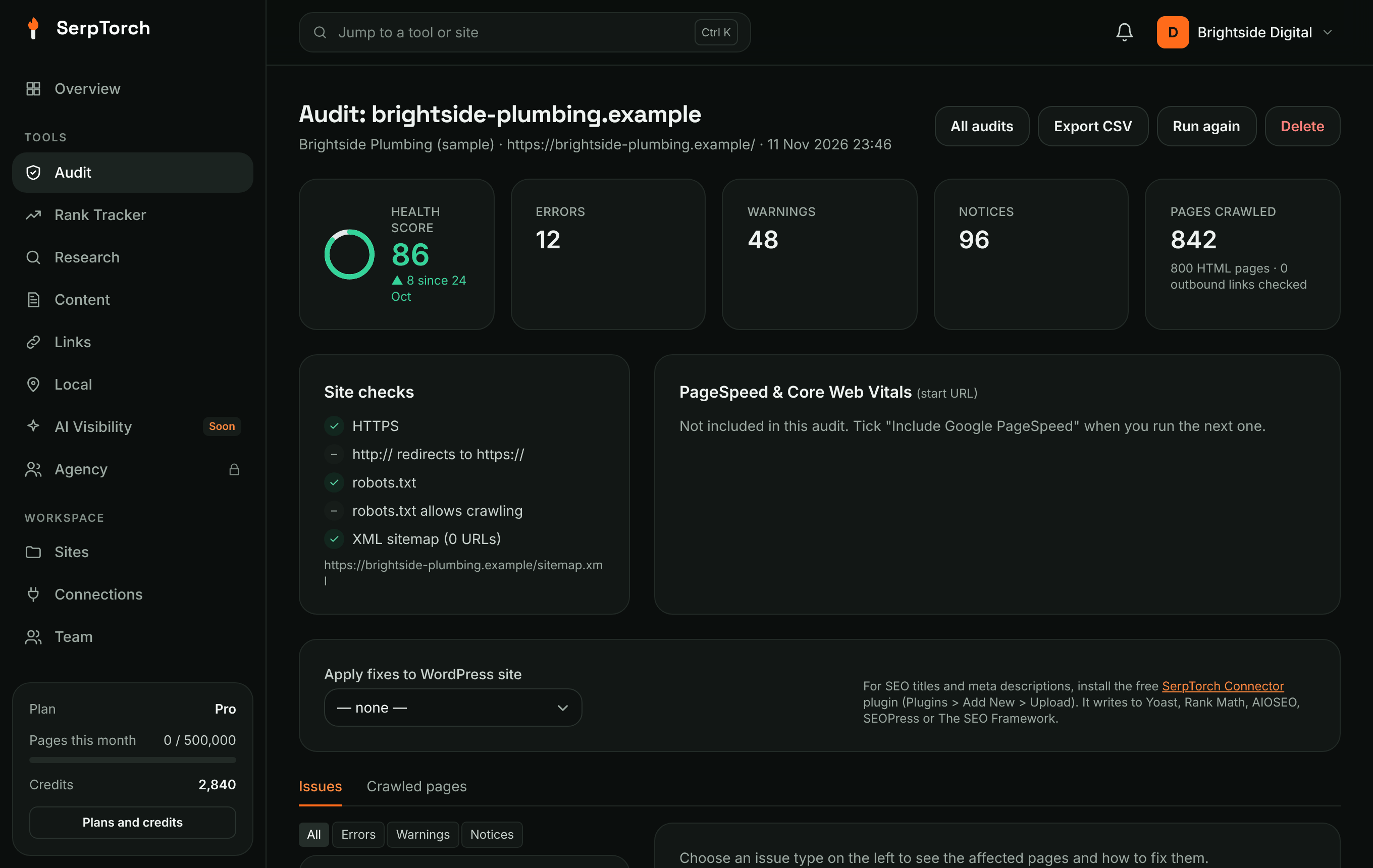
Run an audit
- Open Site audit in the menu.
- Choose the site. The crawl starts at the site's main URL unless you type another start URL (for example a sub-folder).
- Choose how many pages to crawl, from 25 up to 10,000.
- Optionally choose the WordPress site that fixes go to. Leave it on "Match by domain" and SerpTorch picks the connected WordPress site on the same domain.
- Keep Include Google PageSpeed ticked to add Lighthouse scores and Core Web Vitals for the start URL.
- Click Start audit.
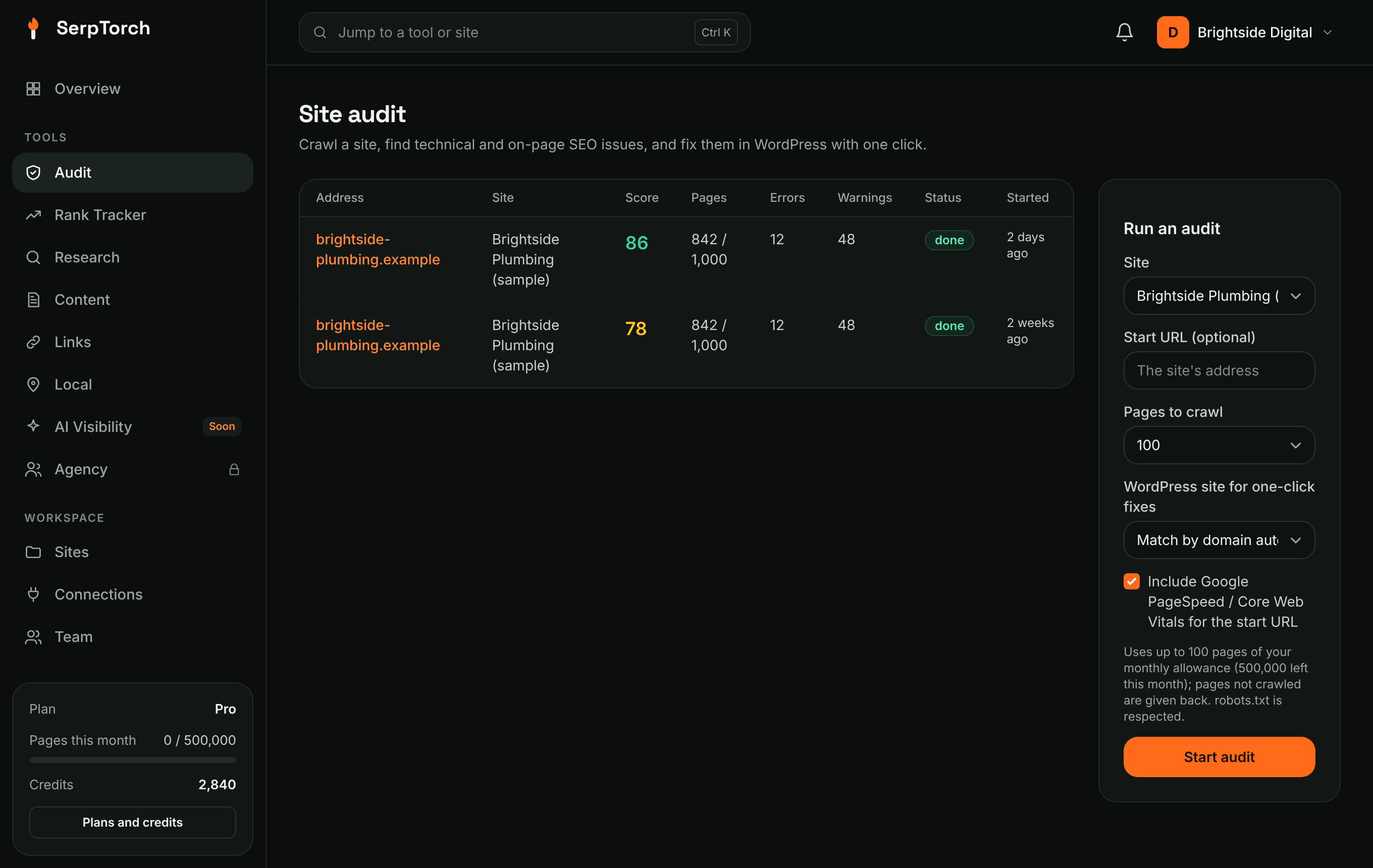
The audit runs in the background in short steps, so you can close the page and come back. The page shows progress and refreshes when it is done. Typical times: 100 pages in two to four minutes; a few thousand pages take up to an hour.
Pages: an audit reserves the number of pages you choose from your monthly allowance (500 on Free, 200,000 on Starter), and pages that were not crawled (a small site, or a stopped audit) are given back automatically.
Advanced options
Click Advanced options on the audit form for:
- Render JavaScript. For sites built with React, Vue, Angular and similar, where the content only appears after scripts run. Each page is loaded in a real browser (headless Chromium) and the rendered page is audited. The audit also compares the raw HTML with the rendered page and flags pages whose content depends on JavaScript. The option is greyed out when your server has no renderer set up (see the server guide).
- Only crawl paths starting with and Never crawl paths starting with. One path per line, for example
/blog/or/products/*/reviews(*matches anything). Full URLs work too. Use them to audit one section or skip tag pages, search results and filters. - Custom extraction. Up to 10 rules that pull a value out of every page: a CSS selector (
.price,#sku,div.author a), an XPath expression (//span[@itemprop='sku']) or a regular expression (/SKU: (\w+)/, the first group is kept). Add an attribute to read it instead of the text (content,href,data-sku). The values appear on the Extracted data tab and in the pages CSV. - Save these settings as a template. Give it a name and choose it next time from Crawl template. Templates also work with scheduled audits.
Run again on an audit repeats it with the same settings.
What the crawler respects
- robots.txt. Rules for
SerpTorchBot, or otherwise for*, are followed. A page you disallow is never fetched; disallowed URLs found in links are listed in the audit. - One site. It follows links on the same domain (with or without
www.) and skips images, PDFs, feeds, carts and admin pages. - Your sitemap. URLs from the XML sitemap (listed in robots.txt,
/sitemap.xml,/sitemap_index.xmlor/wp-sitemap.xml) are crawled too, so orphan pages are found. - Politeness. Pages are fetched one at a time, so the crawl never overloads your server.
What it checks
154 checks in 11 areas (two of them use Search Console when the site is connected). Each issue type has a severity: errors stop pages being found or indexed, warnings hold rankings back, notices are worth a look.
| Area | Examples |
|---|---|
| Crawlability and indexing | robots.txt blocking the site or CSS and JavaScript, unreachable sitemaps in robots.txt, sitemaps over 50,000 URLs, sitemaps listing broken, redirecting, noindex or non-canonical URLs, canonical problems (missing, several, relative, pointing to broken, redirecting or noindex pages), noindex and X-Robots-Tag, meta refresh, soft 404s, www and non-www both loading, URL parameters, deep and orphan pages, links to blocked or noindex pages |
| Status codes and redirects | 4xx and 5xx pages, unreachable pages, broken internal and outbound links, redirect chains and loops, temporary (302/307) redirects, redirects to other domains, internal links through redirects or over http |
| Titles and meta descriptions | missing, too long or short, duplicated, several tags, title same as H1, repeated words, description repeating the title, meta keywords |
| Headings and content | thin and duplicate content, missing, empty, long, duplicated or several H1s, long pages without H2s, skipped heading levels, empty headings, placeholder text, low text-to-code ratio, many iframes, obsolete tags, missing doctype or character set, URL length, capitals, underscores, double slashes and non-ASCII characters |
| Links | empty, generic ("click here") and over-long anchor text, nofollow on internal links, javascript: links, target="_blank" without noopener, dead-end pages, too many links |
| Images and media | missing, file-name or over-long alt text, broken images, meaningless file names, no width and height, no lazy loading, <object>/<embed> plugins, no favicon |
| Structured data and social | missing or invalid JSON-LD, no @context or @type, incomplete Article markup, no Organization schema on the home page or no sameAs, no BreadcrumbList on deep pages, Open Graph and Twitter / X card gaps |
| Performance | slow server response, HTML over 2 MB, no compression, render-blocking scripts, many CSS and JavaScript files, large inline CSS, too many elements, poor PageSpeed, slow LCP, high CLS, slow INP |
| Security and HTTPS | no HTTPS, invalid or expiring SSL certificate, http not redirecting, mixed content, password forms on http, missing HSTS, nosniff, frame protection, Content-Security-Policy and Referrer-Policy, server versions shown in headers |
| Mobile, international and accessibility | missing or zoom-blocking viewport, missing or invalid lang, form fields without labels, hreflang errors (invalid codes, no return link, no self link, no x-default, pointing to broken pages) |
| AI search readiness | AI answer crawlers (ChatGPT, Claude, Perplexity, Gemini) blocked in robots.txt, AI training crawlers blocked, no llms.txt, nosnippet, content that needs JavaScript, articles without author or date, question headings without FAQ markup, no <main> landmark |
The full list with guidance is in the app: open any issue type.
Health score and points
The health score starts at 100. Each issue type lowers it by its severity and by how important the affected pages are: a page near the home page with many internal links counts for more than a deep page nobody links to. When PageSpeed ran, the mobile performance score counts for 20%.
Every issue type shows +N pts: how much the score rises when you fix all of it. The list is sorted by points, so the top of the list is the best use of your time.
Changes since the last audit
From the second audit of a site, the audit page shows Changes since the last audit: the score change, issue types fixed, new issue types, the biggest changes in counts, and every new error with its page.
Read the results
- Site checks shows HTTPS, the SSL certificate, the http→https redirect, robots.txt, the sitemap, how missing pages answer, security headers, AI crawler access and
llms.txt. - PageSpeed & Core Web Vitals shows the Lighthouse scores for mobile and desktop, lab metrics (LCP, CLS, total blocking time), and real-user field data (LCP, INP, CLS) when Google has enough Chrome traffic for the page.
- Issues: filter by severity and by area, then pick an issue type to see every affected page, the details (broken links, insecure resources, pages sharing a title) and how to fix it.
- Crawled pages lists every URL with its status code, title, word count, load time, click depth, internal links pointing to it (S marks pages in the sitemap) and number of issues.
- Structure shows pages per top-level folder with average depth and issues per page, how many clicks pages are from the start page, the most linked pages and pages no internal link points to.
- Extracted data shows your custom extraction values (only when the audit used extraction rules).
- Issues CSV downloads every issue with its fix guidance; Pages CSV downloads every page with its key facts and extracted values.
Fix issues in one click
Issue types marked one-click fix (titles, meta descriptions, image alt text, Open Graph tags and structured data) can be applied for you. First choose where fixes go under Apply fixes to: a connected WordPress site, a Shopify store, a GitHub repository, the edge (Cloudflare), or the pixel connector for any other platform. Open Graph tags go through the edge only, because social networks do not run JavaScript; structured data goes through the pixel or the edge. To have fixes made for you, see Autopilot.
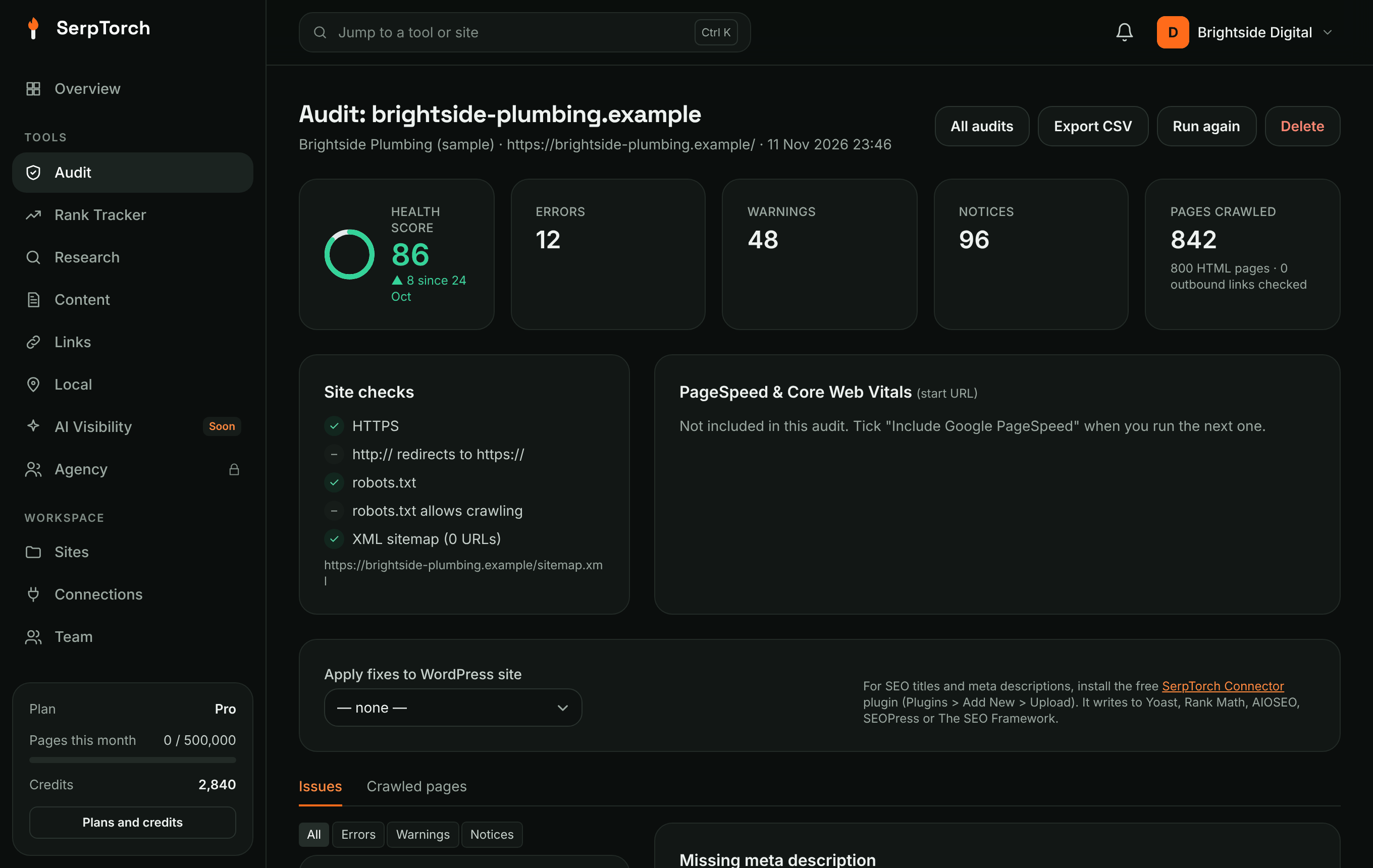
- Open an issue type, choose an AI provider and click Suggest all with AI (up to 25 at a time), or Suggest with AI on one page. You can also type your own text. A counter shows the recommended length.
- Review and edit, then click Apply on one page or Apply all suggested.
- Click Verify live (or Verify applied fixes at the top for up to 50 at once). SerpTorch loads the live page and checks the new value is there; verified fixes get a verified badge. If the site uses a page cache, clear it first.
- Changed your mind? Roll back puts back what the page had before.
Each fix shows what was written and where, for example "Saved via SerpTorch Connector to yoast for page #7". Use Ignore for issues you have decided to leave.
WordPress
- Connect the WordPress site in Sites (an Application Password, as for publishing) and choose it under Apply fixes to.
- Install the free SerpTorch Connector plugin (version 1.3 or later) on that site. Download it from the link on the audit page, then in WordPress go to Plugins > Add New > Upload Plugin and Activate. Click Check connector to confirm.
| SEO plugin on the site | Title and description go to |
|---|---|
| Yoast SEO | Yoast's SEO title and meta description fields (posts, pages, categories and tags, author archives, blog home) |
| Rank Math | Rank Math's title and description fields |
| All in One SEO | AIOSEO's post fields |
| SEOPress, The SEO Framework | their post fields |
| None | the connector's own fields, which it prints as the page <title> and <meta name="description"> |
For image alt text, the connector updates the image in the Media Library and fills a missing alt on images already placed in posts.
The connector reports the exact value it replaced, so Roll back restores it exactly, including an empty field (which brings back your SEO plugin's template). Fixes applied with a connector older than 1.3 cannot be rolled back automatically.
Without the connector, titles fall back to changing the post or page title (which usually also changes the visible heading; rollback restores the old title) and alt text is set through the Media Library. Meta descriptions need the connector.
The connector needs WordPress 6.0+ and only accepts requests from a logged-in user who may edit that content (your Application Password). Authors can only change their own posts, and only Administrators can change the blog home page.
Any other platform: the pixel connector
For Shopify, Wix, Squarespace, Webflow, custom sites and anything else:
- Choose Pixel connector (any platform) under Apply fixes to.
- Copy the one-line snippet shown and paste it into the
<head>of every page: your theme's header, the platform's "custom code" setting, or a tag manager. You only do this once per site. - Click Check pixel install.
Applied fixes are then served by the script: it sets the fixed title, meta description and image alt text in the browser. Google renders JavaScript, so it sees the changes; crawlers that do not run scripts (and some AI crawlers) still see the original HTML, so fix the source when you can. Verify live checks the snippet is on the page and serving the fix. Roll back removes the fix from the script within about five minutes (the script is cached briefly).
Fixes that need a person
Broken links, redirects, speed, HTTPS, sitemaps, headings and content issues come with step-by-step guidance instead of an automatic fix. They usually involve your theme, hosting or content decisions.
Shopify
- In your Shopify admin, go to Settings > Apps and sales channels > Develop apps and create an app. Give it the Admin API scopes
write_products,write_contentandwrite_online_store_pages, install it, and copy the Admin API access token. - In Connections, add a Shopify connection with the store's
.myshopify.comaddress and the token, then choose it under Apply fixes to.
Titles and meta descriptions go to the SEO fields of the product, collection, page or blog article the URL belongs to. Alt text goes to product images. The home page's title is set in Online Store > Preferences, so fix it there.
GitHub (static sites)
For sites built from files in a GitHub repository. Add a GitHub connection with the owner, the repository, the branch and a fine-grained token that can write contents and pull requests. SerpTorch finds the HTML file behind each URL, makes the change on a new branch and opens a pull request. The fix is live once you merge it and the site rebuilds; Verify live says so until then. Roll back closes the pull request.
Edge (Cloudflare)
The edge changes the page's HTML on its way to the visitor, so search engines and social networks see the fix without JavaScript. Choose Edge under Apply fixes to and follow the steps shown: create a Cloudflare Worker, paste the script from the audit page, and route it to your site. Fixes reach the Worker within a few minutes.
Scheduled audits and alerts
Under Scheduled audits on the Site audit page, choose a site, how often (every day, week or month), the pages to crawl, and when to alert you. SerpTorch then audits the site at about 02:00 UTC and:
- emails the workspace owner when the health score drops by your threshold (5 points by default) or, if ticked, when new errors appear;
- records the alert in the activity bell;
- sends the
audit.completedandaudit.alertwebhooks (Agency plan, Settings → Webhooks).
Pause or remove a schedule at any time. Scheduled audits use your monthly page allowance like any other audit.
Audit a list of URLs
When you start an audit, paste the URLs into List mode: audit only these URLs, one per line. Only those pages are checked, and links are not followed. Checks that need the whole site (orphan pages, internal links) are skipped.
Check a redirect map
Before or after moving a site, open Audits > Redirect checks and paste the map: the old URL and the new URL on each line. Each old URL should answer one permanent redirect (301 or 308) straight to its new URL, and the new URL should answer 200. Chains, loops, temporary redirects and broken targets are flagged.
Raw and rendered HTML
On an audit crawled with JavaScript rendering, open the Pages tab and click raw vs rendered next to a page. You see the title, description, canonical, headings and links in the HTML your server sends next to the page after scripts run, plus the text only one of them has. Differences mean part of your SEO depends on JavaScript.
Tips
- Audit after every big change (new theme, migration, plugin updates) and schedule a weekly audit otherwise.
- Work down the list by points: it already weighs severity and page importance.
- Combine with SEO research to find which pages earn traffic, and with the Rank tracker to watch the effect.